Your Complete Guide to Hosting
Medicare Events
CMS Rules for Educational Seminars
Before we get started, we need to make you aware of the compliance issues related to Medicare seminars. The seminars described in this guide are educational events. They are not marketing or sales events.
Be sure to follow all CMS marketing guidelines as well as guidelines for the carriers you are contracted and appointed with.
Educational Events
Educational events are designed to inform beneficiaries about Medicare Advantage, Prescription Drug, or other Medicare programs. These are the kind of seminars we will be discussing.
Marketing and Sales Events
Marketing/Sales Events are designed to steer or attempt to steer potential enrollees, or the retention of current enrollees, toward a plan or limited set of plans.
CMS Guidelines on Educational Events
Events
- Must be explicitly advertised as educational.
- Must be conducted in a public venue, such as a hotel or library, that is accessible to the public without an entrance fee to the event or venue.
- You may not hold a event within 12 hours of holding an educational event in that location. The term “location” covers not only the building where the educational event was held but also adjacent buildings.
- May include communication activities and distribution of communication materials.
During an Educational Event, Agents Must NOT
- Engage in any marketing or sales activity that would meet the CMS definition of marketing activities/materials.
- Include marketing or sales activities or distribute or display plan-specific marketing materials such as enrollment guides, enrollment applications, or brochures.
- Have any form of “Ask Me” button (or similar) that may lead the consumer to believe the agent is a representative of CMS/Medicare or to ask health plan related questions.
- Schedule future marketing appointments.
- Provide cash gifts, gifts easily converted to cash, or charitable contributions made on behalf of a consumer regardless of the dollar amount.
- Conduct an educational event inside a location that requires the consumer to pay an entrance fee to attend (e.g., a consumer is charged a gate fee to enter a health fair to gain access to an educational event).
- Distribute and collect Scope of Appointment (SOA) forms and business reply cards (BRCs).
Agents May
- Answer beneficiary-initiated questions. Distribute and/or display compliant contact information and business cards.
- To be compliant, the material must be free of any plan marketing, premium, or benefit information.
Food, Promotional Items, and Gifts
- Agents may provide light snacks and refreshments, such as coffee and doughnuts. CMS mandates that food items provided “could not be reasonably considered a meal and/or that multiple items are not being ‘bundled’ and provided as if a meal.”
- You may provide promotional items with agent/agency logo, name, contact info, and website URL. The items should not contain information about plans, premiums, or benefits.
- You can give individual gifts (e.g., via a raffle), but everyone in attendance must be equally eligible. Eligibility cannot be conditional on, e.g., making an appointment or filling out a BRC.
- CMS requires that the retail value of snacks, refreshments, promotional items, and gifts does not exceed $15 on a per-person basis.
- CMS example of per-person basis: “10 people are expected to attend an event; the nominal gift may not be worth more than $150 ($15 for each of the ten anticipated attendees). Anticipated attendance must be based on venue size, response rate, and/or advertisement circulation.”
Holding Medicare Seminars Remotely
A lot has changed since we introduced the first edition of this guide in 2019. The pandemic brought remote options to the forefront, changing the face of Medicare sales.
Now that things are back to normal, many agents are still taking advantage of remote
technologies to better serve their clients.
Remote
Options for remote seminars are numerous, and you may wish to do your research. We’ve listed a few choices that include mobile app capability here. For this guide, we’ll be talking about two major offerings.
GoToMeeting is the software of choice here at NCC. It’s easy to use for both the presenter and attendees, and offers built-in recording of conferences. You can offer videos to attendees after your seminar, or use the recording options to easily practice and refine your presentation.
Facebook Live is even simpler than GoToMeeting, and lets you connect with beneficiaries on a platform they likely already use. You can even use your own Facebook page to promote your event! Facebook Live is completely free, but doesn’t offer built-in recording.
1. Choose a Topic
The topic is the key to your educational seminar’s success. It must be interesting enough and with a broad enough appeal to fill a room.
- The topic will be the title of your presentation. Imagine you’re sending a postcard inviting someone to your seminar. You see the person picking up the postcard and reading the title. Did it make them want to attend?
- They say writers write about what they know. Think about what topic you know best.
- You want to contact Medicare-age seniors, but the topic doesn’t have to be Medicare. It could be Social Security or retirement. People interested in those topics are probably Medicare age.
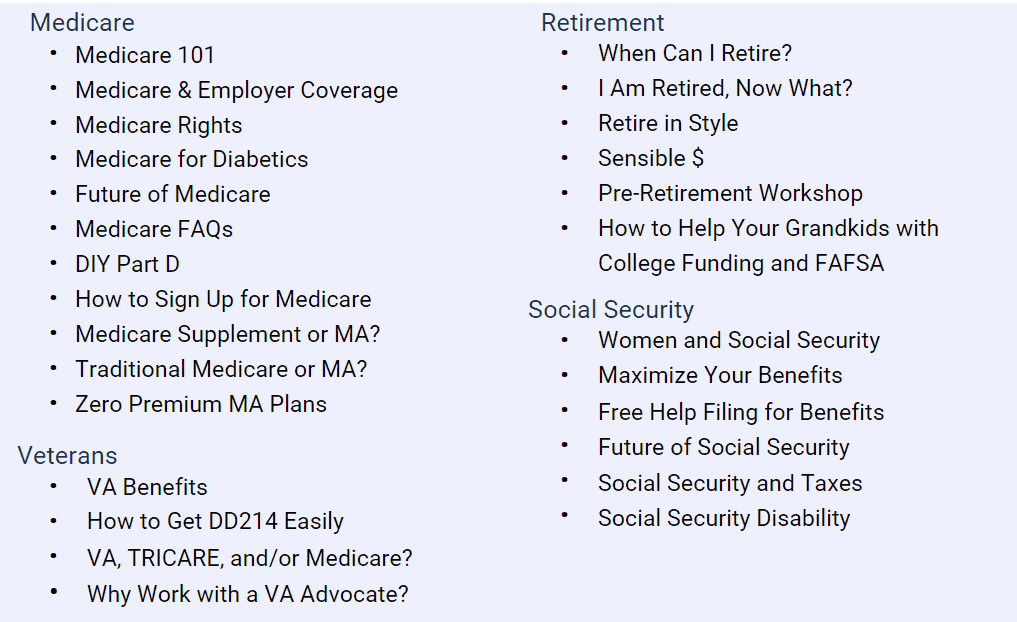
Here are some ideas to inspire you:
2. Plan Your Presentation
Decide how you’re going to deliver the presentation. If you’re presenting in-person, you might use PowerPoint with a projector or TV, an easel and paper, a whiteboard, or just your voice. Do whatever makes you comfortable. Online presentations work in much the same way, with some caveats.
PowerPoint
The technology options mentioned earlier both allow you to share the screen on your device so that you can give the same PowerPoint presentation you would in person.
Whiteboard Presentations
While you can position your device’s camera to capture a presentation on a whiteboard, keep in mind that attendees may be watching on smaller screens. This can make your whiteboard difficult to see. Be aware of this while setting up your camera and be sure to write and draw as large as possible.
Face and Voice Only
This is where services like Facebook Live shine. Each attendee at your seminar will feel like they’re getting a one-on-one presentation. Use this recipe for a 40 to 60-minute presentation.
Introduction: 5 Minutes
Content: 15-3- Minutes
Q & A Sessions: 15 Minutes
Closing Remarks: 5 Minutes
During the introduction, tell the audience your story: where you’re from, your life experiences like jobs and family, why you’re in the insurance business, and why you created your presentation. People buy insurance from people they like.
Be Prepared
If you plan to use a whiteboard, take your own eraser and markers. If you plan to use a projector, make sure you can work the equipment without help. Write down which input the projector is using. Bring your own cables. Have a backup plan in case of technology failure. If you’re presenting remotely, set up the technology well in advance and engage a friend or family member to help you with one or two test-runs. You want to find and fix any issues with sound, video, or login early so there are no surprises when you give your presentation.
Rehearse
Give your presentation in front of friends and family for feedback or record yourself on your phone. When rehearsing, time your presentation. It may be much shorter or much longer than you realize.
Create Handouts
No matter how you deliver your seminar, handouts are a must. For remote presentations, you can offer them in the form of a pdf or email that you send to attendees afterward.
- Handouts help people keep up if they came late or stepped out for a cup of coffee.
- Attendees can take the handouts home and share them with a spouse or friend.
- Handouts are an all-purpose backup plan. They work even if your technology fails, you’re moved to a room without a whiteboard, or you get laryngitis the day of the seminar.
- Here are ideas for what to include on your handout: the title of the presentation, your contact information, a brief “About” section for you or your agency, a summary of the presentation with bullet points, facts and figures, an anonymous client story, and charts or pictures.
Designing Handouts, Emails, and PowerPoints
Layout
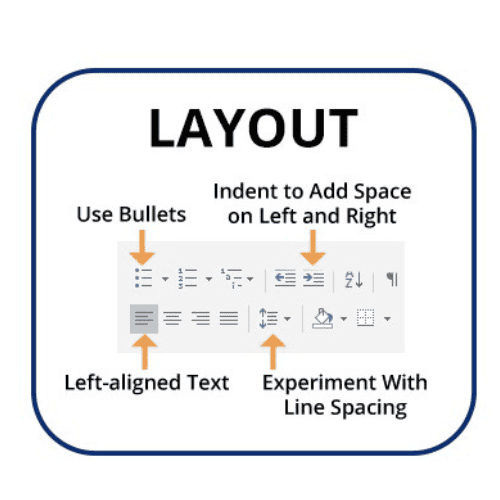
- Professional designers use generous amounts of whitespace around paragraphs, headings, and images. Use one-inch margins for handouts. In Microsoft Office, use the Indent buttons to adjust left and right margins.
- It’s OK to center the main title at the top. Use left-aligned text for everything else. It looks more professional, and it’s easier to read.
- Break long paragraphs into shorter, easier-to-read paragraphs of two to three sentences. Use bullet points whenever appropriate.
- Include a picture, chart, table, or other illustration on each page to hold people’s interest.
- Typing in all caps is bad, but in small doses in design it looks great. Try making short headlines all caps for a different look.
Fonts and Text Styles
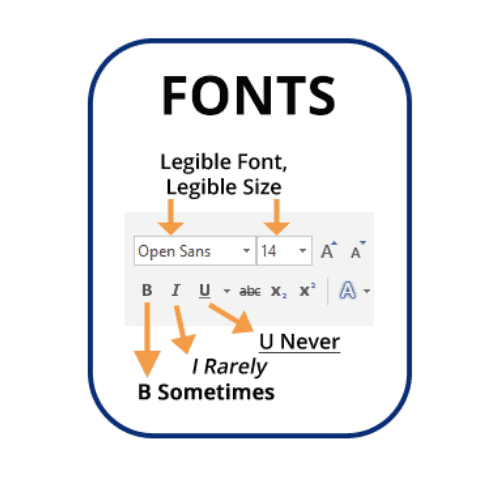
- Fonts.com recommends a 14 point or larger font size for senior citizens.
- Limit yourself to no more than two fonts.
- Use simple, legible fonts like Helvetica and Arial. You can download free, professional- quality fonts from fonts.google.com. This guide uses Google’s Open Sans, which is modern and easy to read.
- It’s OK to use bold for headlines. It’s OK to use bold occasionally to call attention to words in a paragraph.
- Italics are harder to read than plain text. Only use it when you need to emphasize a few words.
- Don’t use underlining. It’s ugly, and it looks amateurish.
3. Reserve a Location
- CMS guidelines prohibit holding an educational event “inside a location that requires the consumer to pay an entrance fee to attend (e.g., a consumer is charged a gate fee to enter a health fair to gain access to an educational event).”
- Some factors to consider: Handicap accessibility, parking, ease of access, and noise/acoustics.
- Libraries are safe and handicapped-accessible, and everyone knows where the library is.
- Check with your city’s visitor center for unique meeting spaces in your area.
- When giving remote seminars, choose a location with limited background noise and distractions. If you’re presenting from home, be sure to keep all pets out of the room and ask anyone else in the house to remain quiet and avoid interrupting you.
- You want to start marketing 4 to 6 weeks in advance, so book a date at least that far out.
- Schedule the location around popular days and times.
Mon
X
Tues
9am -6pm
Wed
9am - 6pm
Thur
9am - 6pm
Fri
x
sat
10am
Sun
x
4. Attract People to Your Event
4 to 6 Weeks Before the Event
- Source new contacts from Facebook leads and traditional lead lists.
- Mail invitations and BRCs.
- Post to Facebook and other social media platforms. Re-post once or twice a week.
- Call anyone you have permission to contact by phone, such as existing clients or people who submitted BRCs or SOAs with phone numbers.
For unsolicited contacts such as lead lists
- You CAN use email “provided all emails contain an opt-out function” on each communication.
- You CAN use U.S. Mail. You are not allowed to call to confirm receipt of mailed information. If the recipient asks you to stop mailing them, you must do so.
- You CANNOT use door-to-door solicitation, such as leaving a leaflet or flyer at a residence.
- You CANNOT approach potential enrollees in common areas (e.g., parking lots, lobbies).
- You CANNOT use telephonic solicitation, including text messages and voicemails.
- You CANNOT use direct messaging on social media, such as Facebook Messenger.
2 to 3 weeks Before the Event
2 to 3 Weeks Before the Event If your RSVP list isn’t enough to fill the room, make more calls, get more leads, and re-send mailers.
The Week of the Event
We’ve found that it’s crucial to call people on your RSVP list a day or five before the seminar. It’s a chance to remind them and to get a verbal commitment (“If the weather’s OK, do you think you’ll be able to come see us on Saturday?”).

5. Knock it Out of the Park
Setup
- Arrive early to set up. Speak with the manager of the event space if applicable.
- If you’re using a laptop, connect it to the projector.
- If you’re presenting remotely, log in and set up your meeting space and PowerPoint if applicable.
- Set out food and refreshments for in-person seminars.
- If in-person, set out business cards, sign-in sheets, BRCs, and SOAs, along with plenty of pens. See the next section for compliance information.
Deliver
- Speak slowly and clearly.
- Ask people in the back if they can hear you.
- Ask for a show of hands to questions like “How many of you have VA benefits?”
- Ask open-ended questions like “What do you find confusing about Medicare?”
- The way you make the audience feel and how they perceive you is more important than including facts and figures.
At the End of Your Presentation
- Pass out or email compliant additional information like business cards, BRCs, and seminar handouts without plan or benefit information.
- Collect BRCs. Check each one to make sure it was completed correctly and includes a phone number. Make sure attendees know they are optional.
- Tip: It’s helpful to have an assistant to distribute and collect material when giving in- person presentations.
Some Things CMS Doesn't Allow
- You’re not allowed to ask for referrals. If someone gives you a friend’s phone number, you’re not allowed to call them.
- Instead, give the attendee one of your business cards to pass along so their friend can call you.
- See the compliance section for more information.

6. Turn Attendees into Leads
Verify Permission to Contact by Phone
There are two ways to communicate compliantly by phone.
1. They Call you
If they call you, you’re compliant. Easy as that. That’s why you want to hand out BRCs, and compliant business cards, handouts, and promotional items with your contact information. (Compliant means the materials are free of any plan marketing, premium, or benefit information.
2. They Give you Permission to Call Them
To be compliant, you need to get permission to contact the attendee and document the permission in writing.
- Distribute and collect compliant BRCs. Make sure they are completed properly and include a phone number. Let attendees know they are optional.
- At the end of your presentation, encourage attendees to schedule a one-on-one appointment later in a different venue. Document this with a signed appointment card.
- If the attendee doesn’t include their phone number, or if the number is wrong, you can’t call them, even if you have their number, e.g., from a lead list or Internet search.
Follow Up with Attendees
- Mail thank you notes.
- Add attendees to future postal mailings.
- You do not need consent to mail information through U.S. Mail. See Section 4.
- Schedule calls and appointments for people who completed BRCs.
- Make thank you calls if you have established permission to contact by phone.
One More Thing: Schedule Your Next Event
You did great! Now do it again. The next seminar is easy. You already have your presentation, handouts, mailers, and other materials. You know what to expect.
Book another room and make seminars a regular part of your marketing plan.

Support For Insurance Agents. It's What We Excel At
As part of our commitment to helping agents succeed, we offer a growing library of in-depth guides. Click below for guides that help you maximize your sales while serving your client’s best interests.